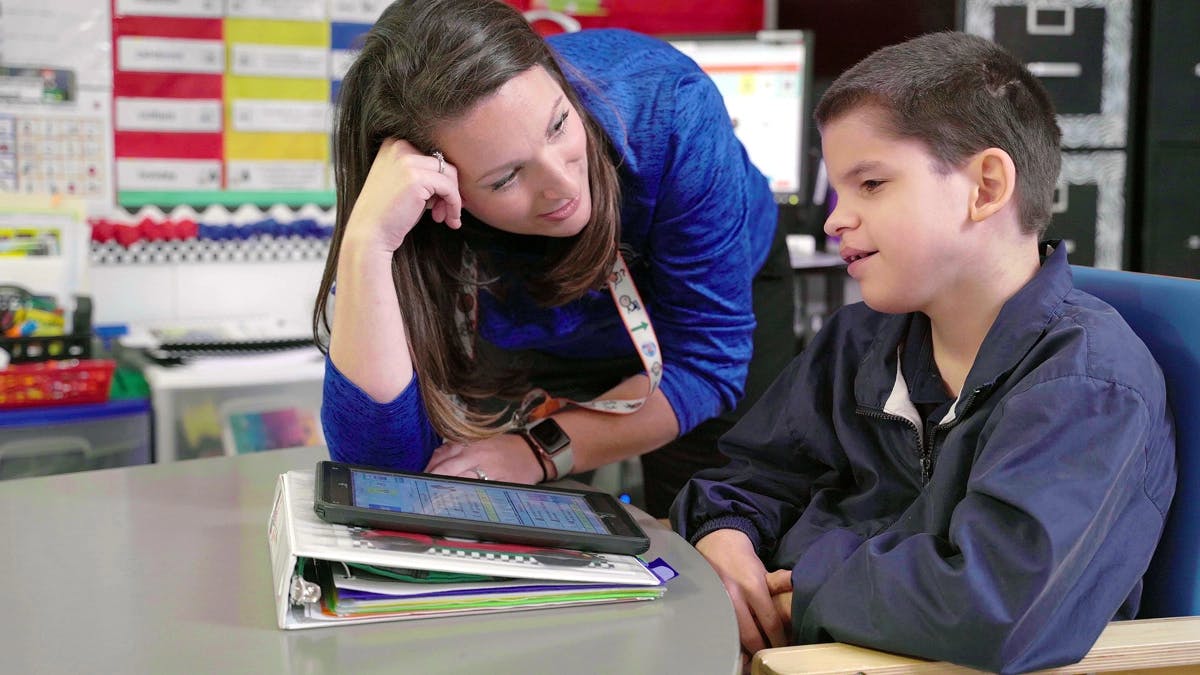
Technology plays an important role in modern classrooms, but not all screen use serves the same purpose. For some students, assistive technology is essential for accessing lessons, communicating with others, and participating in learning.
As schools review screen time policies, it's important to understand the difference between recreational device use and technology that removes barriers to learning.
Assistive technology in the classroom can support students with disabilities and learning differences, giving them greater independence and access to education. Understanding how and why these tools are used helps teachers and school leaders make more informed decisions about classroom technology.
What is assistive technology in the classroom?
Assistive technology includes devices, software, and tools that help students with disabilities access learning, communicate, participate, and work more independently. It can range from simple equipment, such as pencil grips and visual schedules, to digital tools like text-to-speech software and speech-generating devices.
Under the US Individuals with Disabilities Education Act (IDEA), assistive technology devices are defined by their ability to improve or maintain the functional capabilities of children with disabilities.
This means assistive technology is defined by what it helps a student do, rather than its cost, complexity, or whether it involves a screen.
Common examples include:
- Pencil grips and slant boards
- Visual schedules and timers
- Text-to-speech and speech-to-text software
- Captions and accessible reading tools
- Communication boards and speech-generating devices
- Adapted keyboards and switches
These tools can support students receiving special education services. Many can also benefit students in general education classrooms.
Why is assistive technology different from screen time?
Screen time measures how long someone uses a screen. Assistive technology describes how a tool helps remove a barrier to learning, communication, or participation. The same device can serve different purposes depending on how it is used.
For example, a student might use a tablet to watch videos during free time. Another student may rely on that tablet to communicate through a speech-generating app.
Both involve a screen, but their purposes are very different.
| Classroom technology use | Assistive technology use |
|---|---|
| Watching a video for entertainment | Using captions to access spoken information in a lesson |
| Using a tablet for recreational games | Using a communication app to answer questions or express needs |
| Typing notes on a laptop | Using speech-to-text when handwriting creates a barrier |
| Listening to music for entertainment | Using text-to-speech to access written learning materials |
These examples are not always mutually exclusive. A video can be educational and accessible, while headphones may support sensory needs.
The important question is not simply how long students use technology, but what purpose it serves.
Blanket restrictions on devices can unintentionally prevent students from accessing essential support. This is why schools need to consider assistive technology when developing screen time policies.
What barriers can assistive technology remove?
Assistive technology works best when we start with the student's needs, rather than choosing a product first. Different tools can remove barriers related to reading, writing, communication, organization, or physical access.
Reading and accessing written information
Students with dyslexia, visual impairments, or other reading difficulties may find it harder to access written classroom materials. Assistive technology can provide different ways to access the same information.
For example, text-to-speech reads digital text aloud, often highlighting words as they are spoken. This allows students to listen while following the text on screen.
Other supports include audiobooks, screen readers, and text magnification. These tools can help students access grade-level content while they continue developing their reading skills. They do not replace explicit reading instruction when that support is needed.
Writing and expressing ideas
Writing involves several skills, including planning, spelling, handwriting, and organizing ideas. For some students, the physical or technical demands of writing can make it difficult to demonstrate what they know.
Speech-to-text software allows students to dictate their ideas instead of typing or handwriting them. Word prediction can support spelling, while graphic organizers help students plan and structure their thoughts.
For example, a student may understand a science concept but struggle to write a detailed explanation by hand. Speech-to-text can help them communicate that understanding without handwriting becoming the main barrier.
Students still need guidance on using these tools, including reviewing and correcting their work.
Communication and participation
Some students communicate using augmentative and alternative communication, often called AAC. AAC includes tools and strategies that support communication when speech alone does not meet someone's needs.
These can include gestures, picture boards, communication books, or speech-generating devices. The American Speech-Language-Hearing Association provides guidance on AAC and the different ways it can support communication.
For a student who uses a speech-generating device, the technology may be essential for asking questions, sharing ideas, and participating in classroom discussions.
This technology is an essential communication tool that allows them to participate in classroom learning.
Organization and focus
Some students with ADHD or executive function difficulties benefit from tools that make tasks, time, and instructions easier to manage.
Visual schedules can show what happens next. Digital checklists can break assignments into smaller steps, while reminders and timers help students manage deadlines and transitions.
For example, a visual timer can help a student understand how much time remains before moving to another activity.
These supports can make classroom routines more predictable and help students work with greater independence.
Vision, hearing, and movement
Assistive technology also supports students with sensory and physical disabilities. Captions and hearing assistance systems can improve access to spoken information. Magnification and Braille displays can support students with visual impairments.
Students with physical disabilities may use adapted keyboards, switches, or eye-gaze technology to interact with devices. Eye-gaze technology allows someone to select items on a screen using their eye movements. A switch provides another way to control a device through an accessible movement.
The right tool depends on how the student communicates, moves, and accesses information.
How can teachers choose the right assistive technology?
There is no single assistive technology tool that works for every student.
Even students with the same disability or learning difference may need different forms of support. The most useful approach is to understand the barrier, involve the student, and evaluate whether the tool improves access.
1. Identify the barrier
Start by understanding what the student is finding difficult. Is the challenge reading the instructions, writing an answer, communicating with peers, or completing a task independently?
It's also worth considering whether the task or environment itself creates an unnecessary barrier.
2. Consider the learning goal
Think about what the student is expected to learn or demonstrate. If the goal is understanding a science text, text-to-speech may help the student access the information.
If the goal is assessing independent word reading, however, reading the text aloud may change what is being measured. The technology should support access without removing the skill being assessed.
3. Choose an appropriate tool
More advanced technology is not always the best option. A printed visual schedule may provide all the support one student needs. Another student may benefit from a digital schedule with reminders.
Start with the option that effectively removes the barrier and works within the student's learning environment.
4. Involve the student
Students should have a voice in choosing and testing assistive technology. A tool may appear suitable but feel uncomfortable, distracting, or difficult to use.
Trialing technology during everyday lessons, group activities, and assessments can help teachers understand what works in practice.
5. Teach the tool and review its impact
Providing assistive technology is only the beginning. Students need opportunities to learn how to use it confidently. Teachers may also need training to understand how it fits into lessons.
Rather than measuring how often a student opens an app, consider whether the tool improves independence, participation, accuracy, or access to learning.
How does assistive technology fit into an IEP or 504 plan?
In the US, assistive technology may form part of a student's Individualized Education Program (IEP) or Section 504 plan.
An IEP sets out the special education services, supports, and goals for an eligible student with a disability. A 504 plan documents accommodations and related support that help an eligible student access education without disability-related discrimination.
Under IDEA, IEP teams must consider whether a student needs assistive technology devices and services. Although these plans serve different purposes, both can help schools identify barriers and put appropriate support in place.
Assistive technology, accommodations, and modifications
| Term | What it means | Example |
|---|---|---|
| Assistive technology | A tool that helps a student access learning or participate | Text-to-speech software |
| Accommodation | A change to how a student accesses learning or demonstrates knowledge | Additional time where appropriate |
| Modification | A change to what a student is expected to learn or demonstrate | An adjusted learning objective |
Assistive technology can be one way of providing an accommodation. The important point is to connect the support to a meaningful outcome.
For example, rather than recording only that a student will use a tablet, an IEP team might specify how text-to-speech will support independent access to written assignments.
Schools should also review whether the technology continues to meet the student's needs. For more information, read our guide to IEPs and 504 plans.
How can schools create screen time policies that protect accessibility?
Many schools are reviewing device use to reduce distractions and support student wellbeing. These are important goals. However, screen time policies should also recognize that some students rely on technology to communicate, learn, and participate.
A policy that treats every device in the same way may unintentionally remove access to essential support. For school leaders, the challenge is creating clear expectations without restricting tools that students need.
Useful approaches include:
- Recognize assistive technology: Make sure policies distinguish accessibility tools from recreational device use.
- Protect individual support needs: Consider IEPs, 504 plans, and other relevant accessibility requirements before restricting devices.
- Support healthy technology use: Include movement breaks, appropriate positioning, and opportunities for eye rest.
- Consider access throughout the school day: Some students need communication or accessibility tools beyond classroom lessons.
- Train staff: Help teachers understand when technology is providing essential support.
These decisions should involve special education teams, general education teachers, school leaders, students, and families where appropriate.
The aim is to manage unnecessary screen use while protecting students' access to learning and communication.
Supporting successful assistive technology use across schools
Choosing suitable technology is important, but schools also need the right training, funding, and support to make it effective.
Funding and access
Funding for assistive technology may come through school or district budgets, special education funding, state assistive technology programs, or other available resources.
Schools can also explore equipment loan programs that allow students to trial devices before committing to a particular option.
Funding responsibilities depend on the student's circumstances and applicable legal requirements. Schools should not assume families must purchase technology needed to provide required educational support.
Staff and student training
Technology is most useful when both students and teachers know how to use it. Short practical training sessions, shared teaching resources, and a clear point of contact for technical support can help build confidence.
Training should also focus on how tools support learning goals, rather than simply demonstrating product features.
Student data privacy
Digital accessibility tools may process student writing, voice recordings, or other personal information. Before introducing a tool, schools should review its privacy and security practices, including what information is collected, who can access it, and how long it is retained.
These checks should form part of the school's existing student data protection processes.
Building more inclusive classrooms
Assistive technology is one part of creating accessible learning environments. Universal Design for Learning encourages educators to plan different ways for students to access information, participate, and demonstrate understanding.
Making features such as captions and text-to-speech widely available can benefit many learners, while individualized assistive technology remains essential for some.
How Everway solutions support inclusive education
We create technology that supports different ways of learning, working, and communicating. Tools such as Read&Write help students access written information and express their ideas in ways that work for them.